See where your data goes. Buy only what you need.
Data Guardian shows you exactly which apps are draining your data in real time. Take full control—restrict background apps, set limits, and buy data bundles for Nigeria without leaving the app.
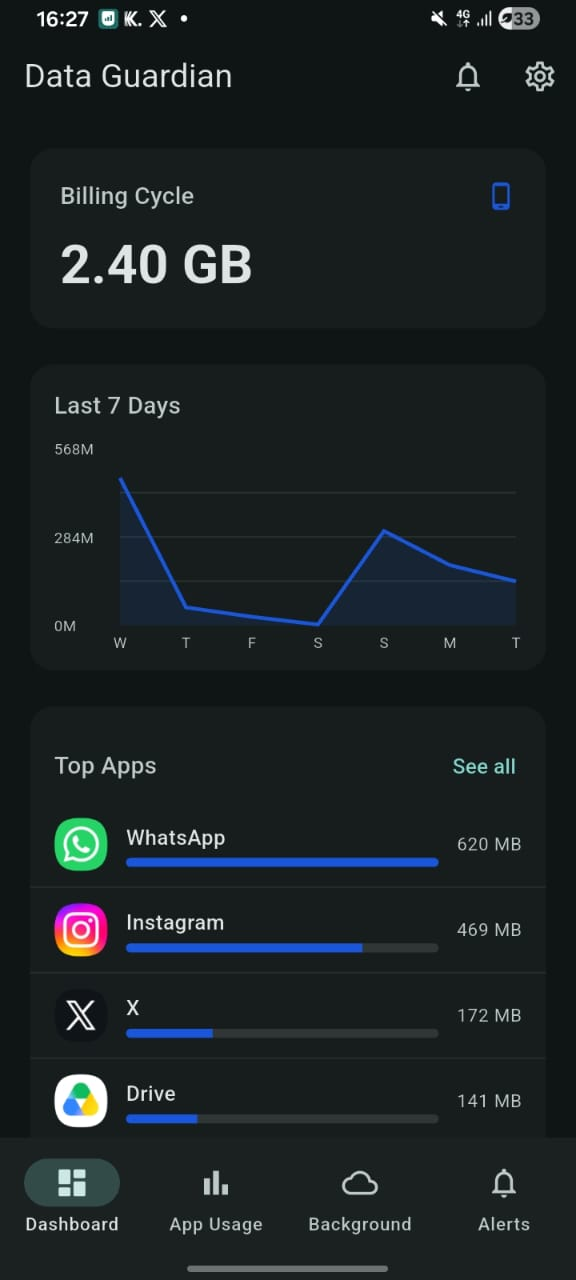
Your data, finally visible.
Your billing cycle usage and top data-hungry apps at a glance
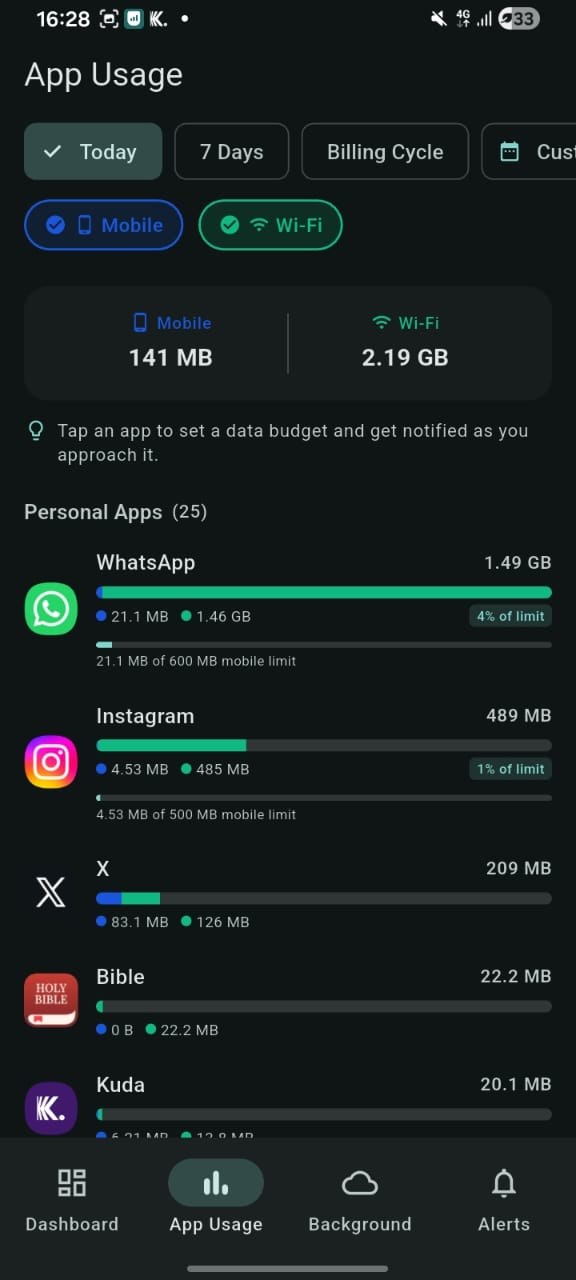
Per-app breakdown of mobile vs Wi-Fi with budgets you set
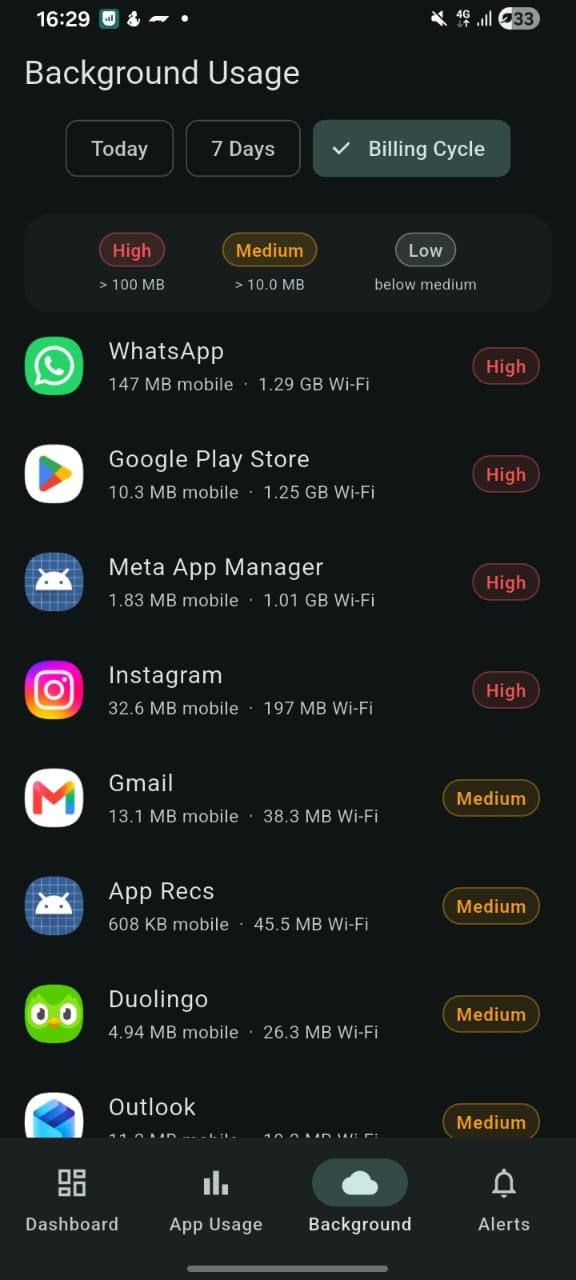
Spot which apps are quietly using data in the background
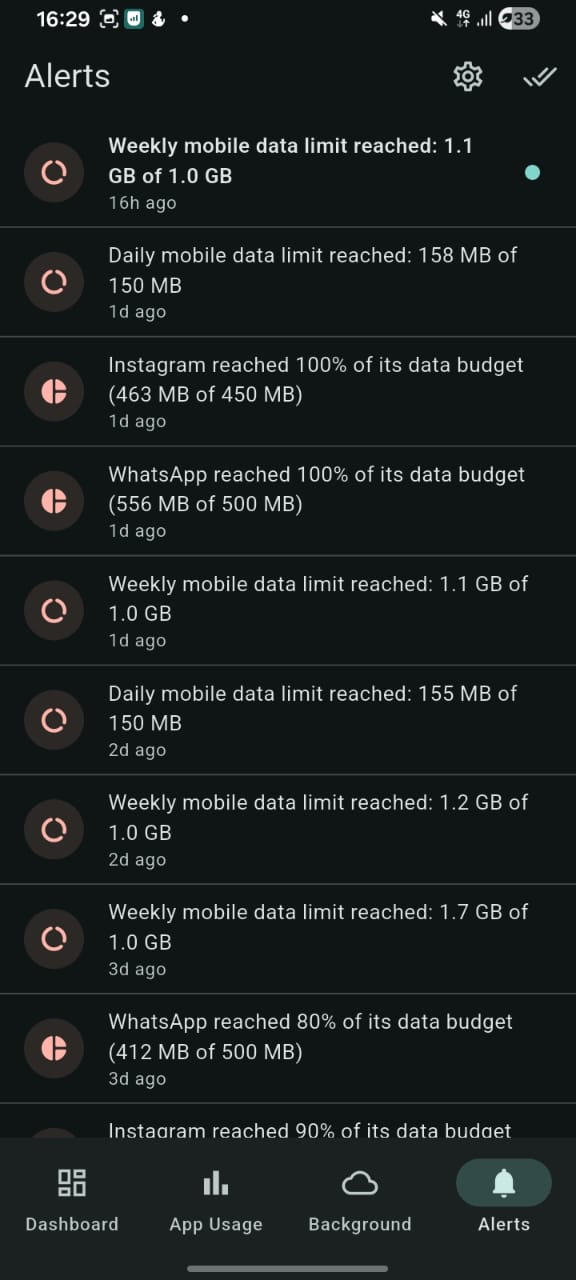
Threshold and spike alerts the moment something looks off
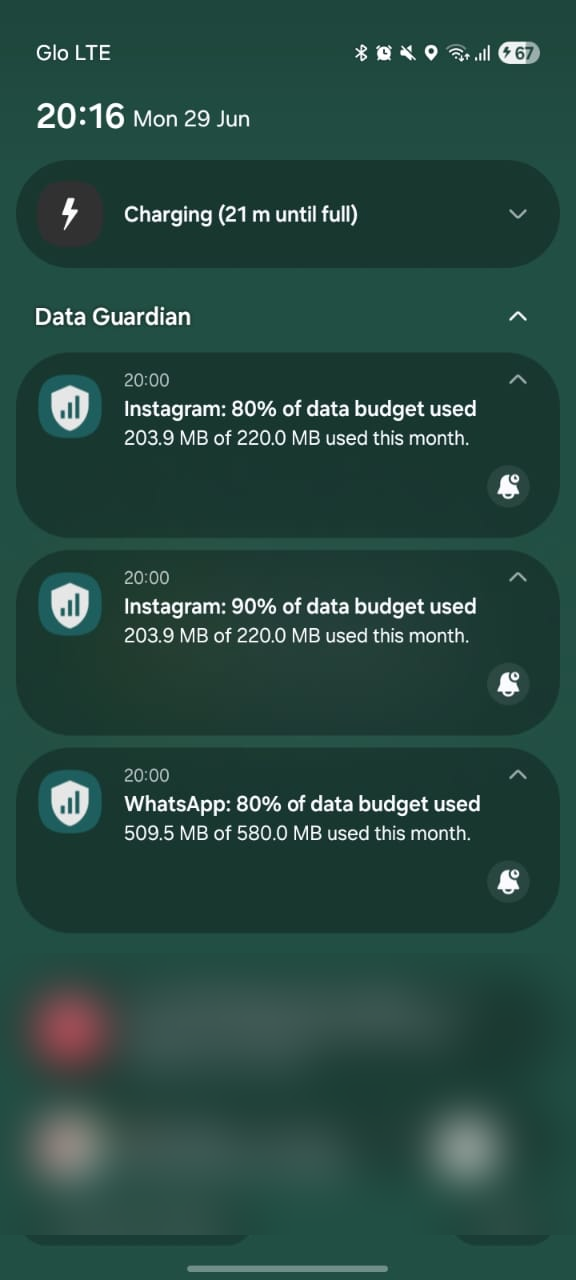
Budget alerts land right in your notification shade
Everything you need to spend less.
Spike anomaly detection
Data Guardian learns your normal pattern and flags unusual spikes, so a runaway background app can't quietly drain your data. Instead of discovering a missing bundle hours later, you get told the moment usage stops looking like you — which app it was, how much it burned, and what to do about it.
App-level usage visualisation
See exactly how much mobile and Wi-Fi data every app on your phone is using — today, this week, or across your billing cycle.
Daily & weekly budgets
Set a daily or weekly cap for your whole phone, or per app. Data Guardian tracks how close you are and warns you before you blow past it.
Usage threshold alerts
Get notified the moment an app or your overall usage crosses a limit you've set — before your bundle is gone.
Daily updates
A quick daily summary of what you used yesterday and where it went — so you always know what's happening on your line.
Background data management
Find and restrict apps that use mobile data in the background, so nothing drains your bundle while you're not looking.
Buy data bundles for Nigeria
Top up your line with MTN, Glo, Airtel, and 9mobile data bundles directly inside the app — no need to leave Data Guardian.
What people told us.
“I was frustrated but didn't feel confident that reporting it would lead to a clear explanation or resolution. I just ended up buying another data plan.”
“I stopped buying data on that network.”
“It has become an accepted thing. In 2026, that is appalling.”
How to use Data Guardian
From download to your first data insight in under two minutes.
1. Download the APK
Tap 'Download for Android' at the top of this page. Your browser will save data-guardian.apk to your Downloads folder.
2. Allow install from this source
Open the file. If Android warns you, tap 'Settings' and enable 'Allow from this source' for your browser, then tap Install.
3. Unlock restricted settings
On Android 13+, open Settings → Apps → Data Guardian, tap the three-dot menu, and choose 'Allow restricted settings' so the app can protect your data.
4. Grant the required permissions
Allow Usage Access and Notifications when prompted. These let Data Guardian measure per-app data use and alert you to spikes.
5. Start monitoring
Open the dashboard to see per-app data usage in real time, set daily limits, and restrict background apps.
Why Data Guardian needs restricted permissions
To measure how much data every app is using — and to stop the ones draining it in the background — Android requires us to hold a few sensitive permissions. Here's exactly what each one does, and nothing more.
Usage Access
Why we need it: Reads which app is in the foreground so we can attribute mobile data to the correct app. Without it, we can only show a single total number for your whole phone.
How to allow it: Settings → Apps → Special app access → Usage access → Data Guardian → Allow.
Notifications
Why we need it: Sends real-time alerts when an app suddenly starts eating data, so you can stop it before your bundle is gone.
How to allow it: Settings → Apps → Data Guardian → Notifications → Allow.
Background service (foreground service)
Why we need it: Keeps the data monitor running even when the app is closed, otherwise Android would kill it and stop counting.
How to allow it: Settings → Apps → Data Guardian → Battery → Unrestricted.
Query all packages
Why we need it: Lets us list every installed app so you can see and control data for all of them, not just a hard-coded shortlist.
How to allow it: Granted automatically on install — no action needed.
Android 13+ shows a "Restricted setting" warning
Because Data Guardian is installed outside the Play Store, Android hides sensitive permission toggles until you unlock them. You must do this before the app can monitor data usage or send alerts.
- Open Settings → Apps and tap Data Guardian.
- Tap the three-dot menu in the top-right corner.
- Choose Allow restricted settings.
- Return and grant Usage Access and Notifications.
More detail from Google: About restricted settings on Android.
Available on Android
Download the app directly to your phone. No Play Store needed yet.
If prompted, enable 'Install from unknown sources' in your Android settings to complete installation.
Stay in the loop
Leave your email to get updates on new Data Guardian features and releases.
Frequently asked questions
Everything you might want to know before you install.